
Appearance
Notion Weekly Reports Setup
Sebora can deliver your weekly operator report to Notion while still keeping the full report available inside Sebora.
This is useful if your team works in Notion and wants:
- A weekly prioritized SEO checklist
- Links to prepared articles from Sebora
- A simple handoff page for review and execution
How it works
- Sebora remains the source of truth for your weekly report (inside the app)
- Notion is an optional delivery channel
- After one-time setup, Sebora automatically pushes future weekly reports to your Notion page
INFO
Sebora currently connects to Notion using an internal integration token + a parent page URL (not OAuth yet).
Before you start
You will need:
- A Notion workspace where you want reports delivered
- Permission to create an internal integration in that workspace
- A parent Notion page where Sebora can create weekly report pages
Step 1: Create a Notion integration
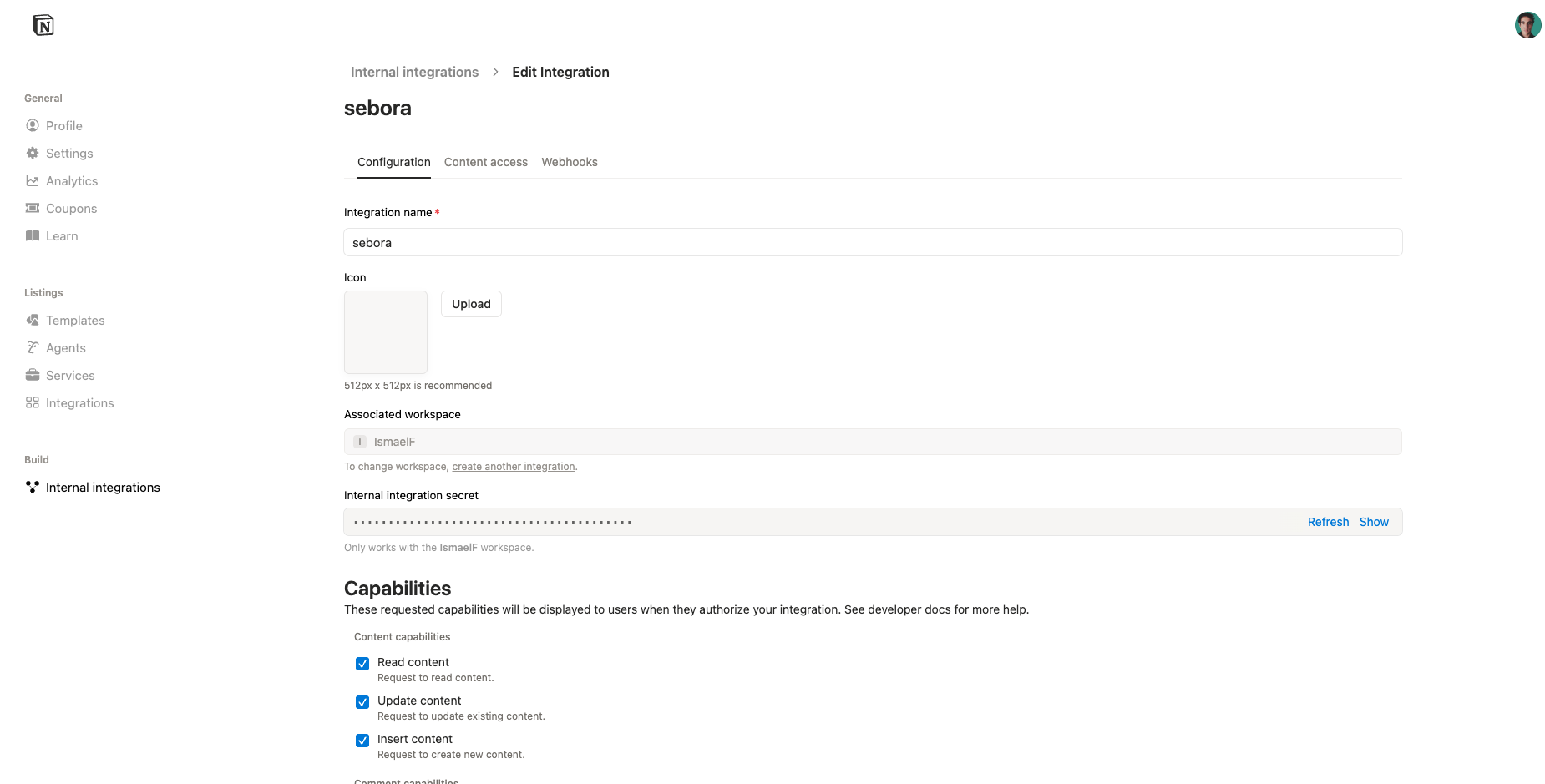
- Open the Notion internal integrations page: https://www.notion.so/profile/integrations/internal
- Click New integration
- Choose the workspace where you want Sebora reports to be delivered
- Name it something like
Sebora - Save the integration
- Copy the Internal Integration Secret (starts with
secret_...)
TIP
Keep this token private. It gives Sebora permission to create pages in the pages you share with the integration.
Step 2: Create (or choose) a parent page in Notion
Create a page in Notion where Sebora will place weekly reports, for example:
Sebora Weekly ReportsSEO OpsMarketing / SEO Weekly
Sebora will create a new child page for each weekly report under this page.
Step 3: Grant page access to the integration
- Go back to your integration settings: https://www.notion.so/profile/integrations/internal
- Click on your Sebora integration
- Go to the Content access tab
- Click Edit access
- In the Manage page access dialog, search for and select the parent page where Sebora should push weekly reports
- Click Save
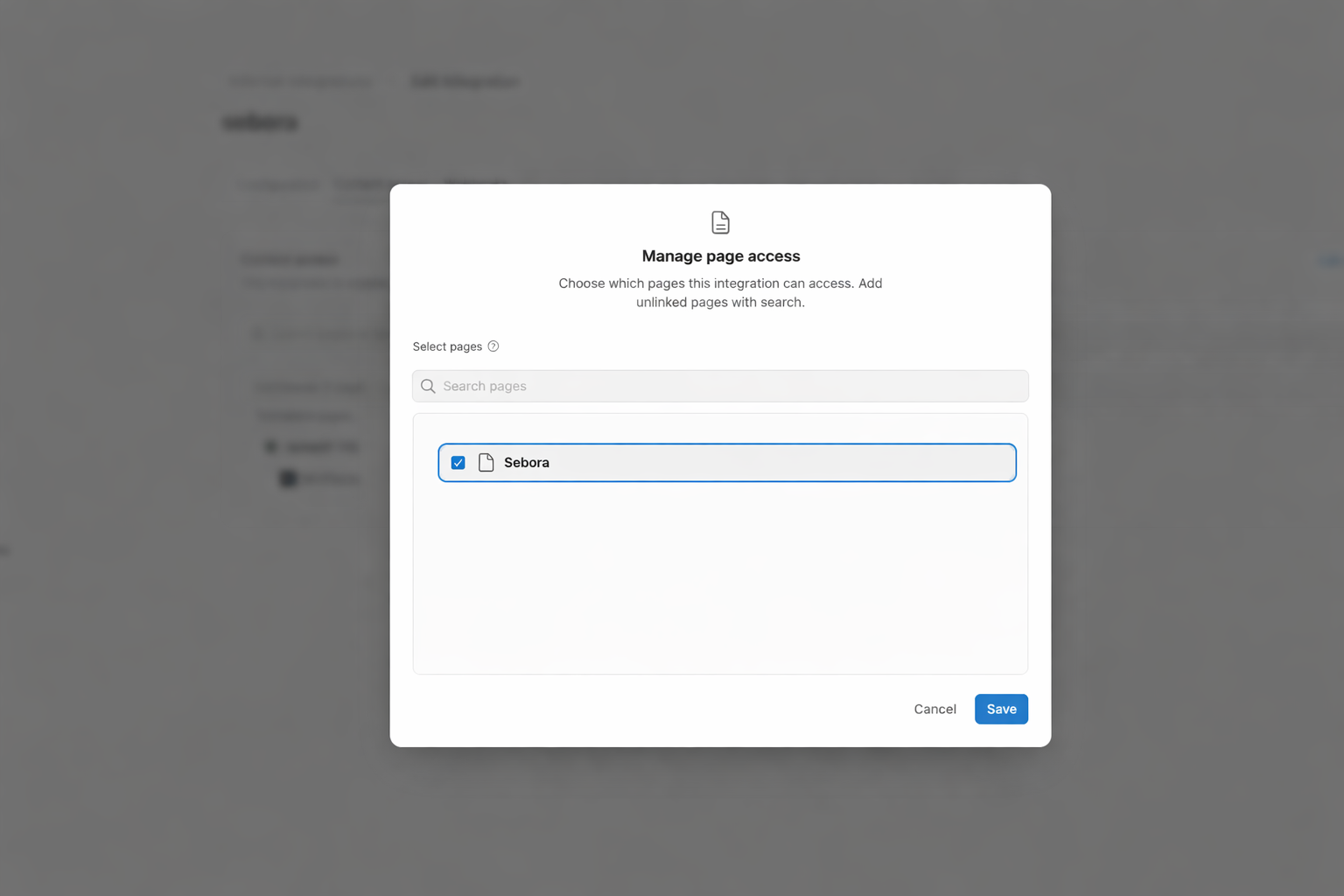
If this step is skipped, Notion will reject the connection or report push.
Step 4: Connect Notion in Sebora
When a weekly report includes prepared articles, Sebora shows a Connect Notion prompt in the weekly report panel.
- Open your project in Sebora
- Go to the Weekly Reports section
- Click Connect Notion
- Paste:
- Notion integration token
- Parent page URL (or page ID)
- Click Connect Notion
After connecting, Sebora immediately pushes the currently selected weekly report to Notion.
What Sebora sends to Notion
Each weekly report page in Notion includes:
- A summary of the reporting period
- A prioritized checklist (SEO actions)
- Prepared article links (pointing back to Sebora article pages)
- A link back to Sebora for the full report
Managing delivery
Push a report manually
From the Weekly Reports panel in Sebora:
- Click Push to Notion to send the selected report
- Click Repush report if you want to send it again
Disconnect Notion
From the same panel:
- Click Disconnect
This stops future automatic pushes until you reconnect.
Troubleshooting
"Failed to connect Notion"
Common causes:
- Invalid or expired token
- Parent page URL is incorrect
- The parent page was not shared with the integration
"Notion sync failed"
Try:
- Clicking Repush report
- Confirming the integration still has access to the parent page
- Confirming the token is still valid
I can’t find the Connect Notion prompt
The setup prompt appears when:
- You are viewing Weekly Reports
- The selected report includes prepared articles
- Notion is not already connected for the project
If Notion is already connected, you’ll see the delivery status and push controls instead.
FAQ
Does this replace Sebora’s weekly report?
No. Sebora still keeps and displays the weekly report in-app. Notion is an additional delivery channel for your team workflow.
Can I choose a different Notion workspace later?
Yes. Disconnect Notion and reconnect using a token from a different workspace (and share a new parent page).